SubPair / Guides
Dual subtitles on YouTube
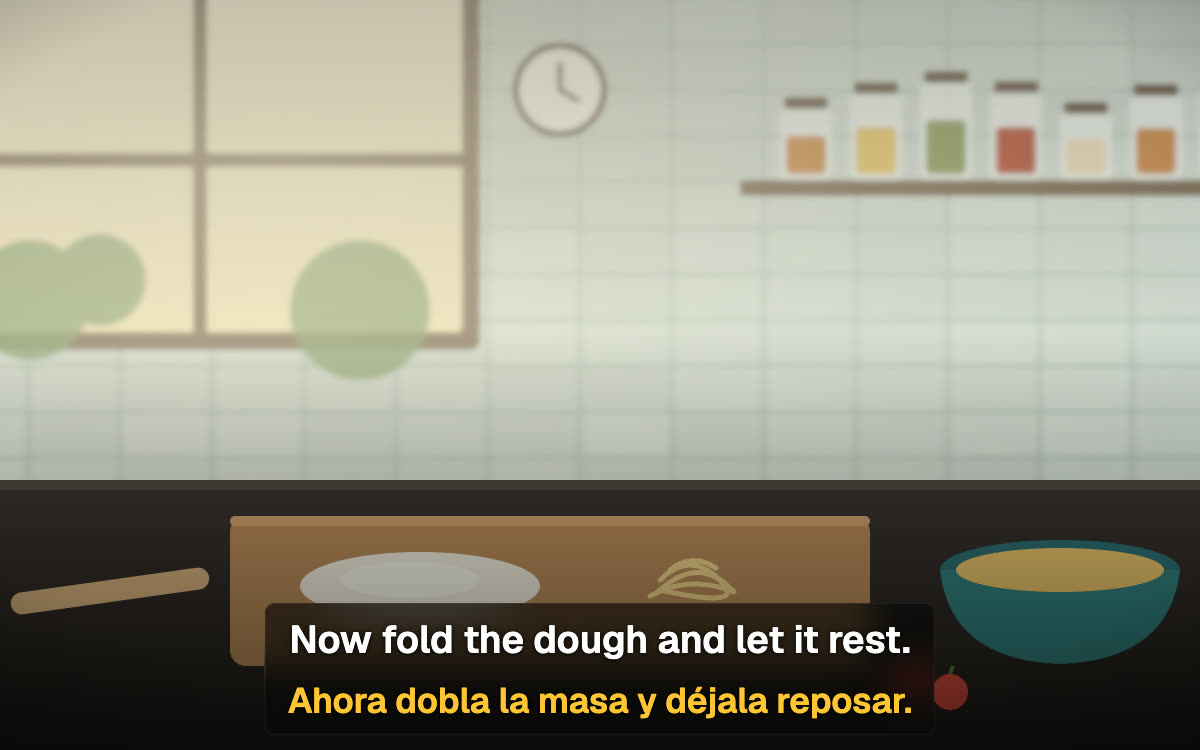
YouTube shows one caption track at a time, and its auto-translate swaps the original out instead of adding to it. SubPair keeps the original caption and puts a second line in your language right under it — useful for talks, lessons and interviews in the language you are learning.
Free plan, no account needed. Runs in desktop Chrome.
What is SubPair?
SubPair is a Chrome extension that shows two subtitle lines at once on Netflix, YouTube and Disney+: the original and a translation in your language. Click any word for its meaning, save words and phrases, and review them later. The free plan includes unlimited dual subtitles from each platform’s own subtitle tracks; Pro costs $4.99 a month or $39 a year.
Where the second line comes from
Many videos carry captions in more than one language. When your language is one of them, SubPair lines the two caption tracks up by time, so the second line is there instantly and doesn’t use any daily allowance.
When the video has captions only in its original language, auto-translation writes the second line. The free plan includes 100 auto-translated lines a day.
SubPair prefers captions added by the creator and falls back to YouTube’s auto-generated captions when that is all a video has.
A note about CC
SubPair works from the video’s captions, so the video needs to have some. You don’t have to switch them on: SubPair does it for you. If no subtitles appear after a few seconds, SubPair shows a hint — press C or click the CC button in the player.
A video without any captions has nothing to align or translate, so it can’t get dual subtitles. Look for the CC button in the player before you start.
Set it up in five steps
- Install SubPair in desktop Google Chrome (Windows, macOS, Linux or ChromeOS).
- Open a YouTube video that has captions (the player shows a CC button).
- Click the SubPair icon in the Chrome toolbar to open the side panel.
- Choose the language of the video for the top line and your language for the second line.
- Press play. The side panel shows whether the second line comes from the video’s own captions (Instant) or from auto-translation (Auto).
Useful on YouTube
- Click any word for its meaning, or drag across several words to save a whole phrase.
- Read the full transcript in both languages and click a line to jump there.
- Download the subtitles as SRT — original, translation or both.
- Size, position, blur and auto-pause are in the side panel’s subtitle settings and work the same as on Netflix.
What’s free and what’s Pro
- Free
- Unlimited dual subtitles from the video’s own captions, 100 auto-translated lines a day, the click-word dictionary (word look-ups don’t count, up to 300 a day), unlimited saving, review, transcript, CSV and SRT export.
- Pro — $4.99/month or $39/year
- Unlimited auto-translation, per-line appearance and Anki export with scene context.
Questions about dual subtitles on YouTube
Not on its own. The YouTube player shows one caption track at a time, and its auto-translate replaces the original line instead of adding a second one. SubPair adds the second line in desktop Chrome.
Usually not: SubPair turns captions on for you. If nothing appears after a few seconds, press C or click the CC button in the player. A video without any captions can't get dual subtitles.
Yes. SubPair prefers captions added by the creator and uses YouTube's auto-generated captions when a video has nothing else. Auto-generated captions can contain recognition mistakes, and those carry over into the second line.
Yes. When the video already has captions in both of your languages, dual subtitles are instant and unlimited on the free plan. Auto-translation for a missing language is free up to 100 lines a day; Pro ($4.99/month or $39/year) removes that limit.
SubPair waits until the ad is over and starts the subtitles with the video.