SubPair / Guides
How to learn a language with YouTube
Updated
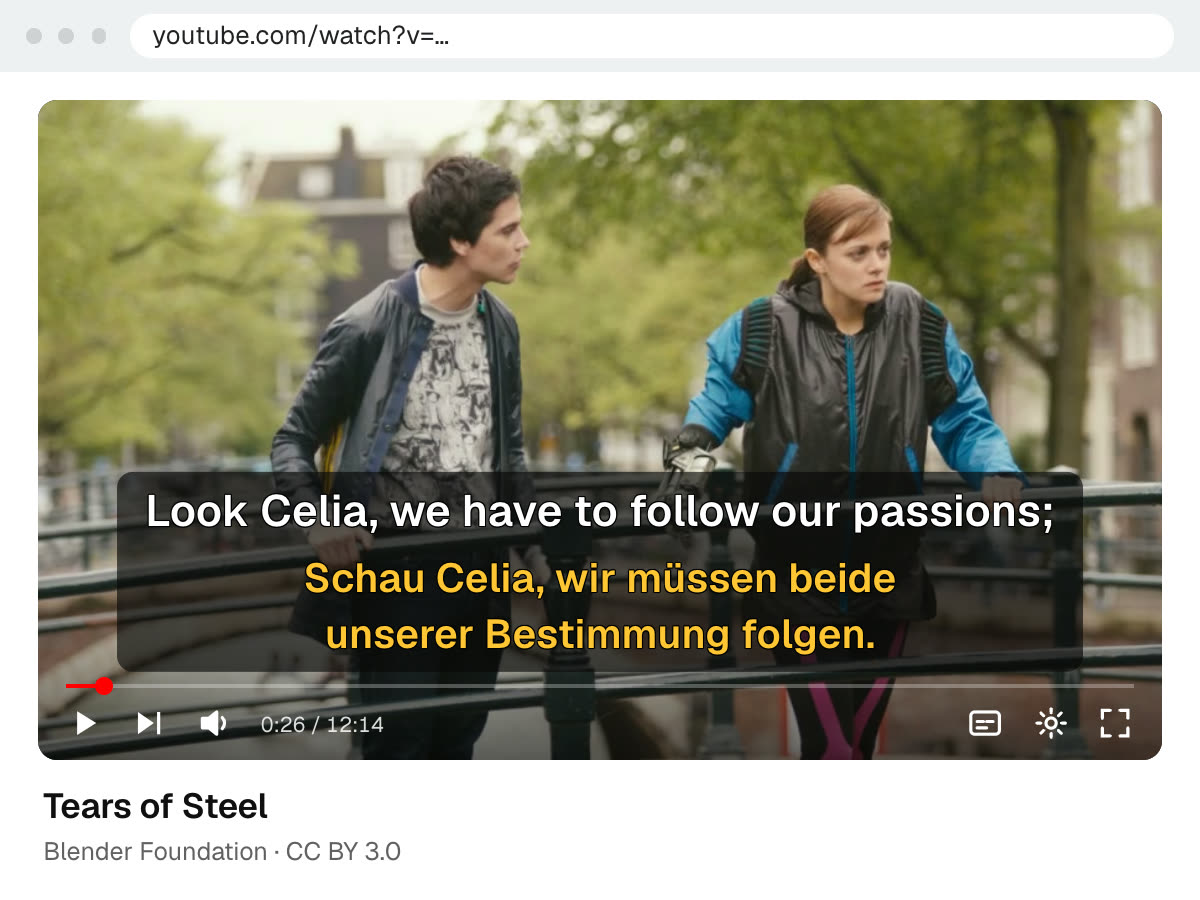
Short answer: choose short videos by native speakers that have captions written by the creator. Watch with the original caption on top and your language underneath, replay and loop the lines you can’t catch, and save useful phrases to review later. YouTube shows one caption track at a time; in desktop Chrome, an extension such as SubPair adds the second line.
Free right now, no account needed. Runs in desktop Chrome.
What is SubPair?
SubPair is a Chrome extension that shows two subtitle lines at once on Netflix, YouTube and Disney+: the original and a translation in your language. Click any word for its meaning, save words and phrases, and review them later. It is currently free for everyone, with unlimited auto-translation and every Pro feature; a paid Pro plan may come later.
Why YouTube works for learners
You can find videos about almost anything you care about, which makes it easier to keep going. Videos are short enough to watch twice. You hear many accents and real, unscripted speech. And there are whole channels made for learners, speaking slowly and clearly in the language they teach.
Find videos with good captions
- Search in the language you are learning, then use Filters → Subtitles/CC to show only videos with captions.
- Open the subtitle menu in the player settings. Captions marked “auto-generated” come from speech recognition; the others were added by the creator and are usually more accurate.
- Prefer videos with captions in both languages: then both lines come from the video itself.
What to watch at each level
- Beginner: channels for learners, daily-routine vlogs and cooking videos, where what you see shows what is being said.
- Intermediate: interviews, explainers and street interviews on topics you know in your own language.
- Advanced: debates, comedy, news and long podcasts with captions.
Learn from one video in five steps
- Pick a short video in the language you are learning that has captions written by its creator.
- Watch it once with the original caption on top and your language underneath, for the general meaning.
- Watch it again with your language blurred (Alt+B). Replay or loop the lines you can’t catch and say them along with the speaker.
- Click the words that stopped you and save the useful ones, or drag across a phrase to save it whole.
- Review your saved words in the side panel before your next video.
Installing SubPair and choosing the two languages: dual subtitles on YouTube, step by step.
Tools that help on YouTube
- Go to the previous line, replay it or skip ahead with A S D, and loop the current line with Alt+L. All keyboard shortcuts.
- Auto-pause (Alt+P) stops the video after each line, so you can read both lines before moving on.
- Read the full transcript in both languages and click a line to jump there.
- Download the subtitles as SRT — original, translation or both.
- YouTube’s own playback speed setting slows a fast speaker down.
A video without any captions has nothing to align or translate, so it can’t get dual subtitles. Look for the CC button in the player before you start.
Keep what you learn
Words you save on YouTube keep their line and the moment in the video, and come back in the same review as words from Netflix. How to learn vocabulary from TV shows explains how the review spaces them out.
Questions about learning a language with YouTube
They are useful, but they come from speech recognition and contain mistakes, especially with names, accents and background noise. Prefer videos with captions added by the creator. With auto-generated ones, trust your ears when the text looks odd.
Search in the language you are learning, open Filters and choose Subtitles/CC. In a video, the CC button and the subtitle menu in the player's settings show which caption languages it has and whether they are auto-generated.
They complement each other. YouTube has short videos on any topic, many accents and channels made for learners, at no cost. Netflix has long series with professional subtitles, where the same characters and vocabulary keep coming back. Many learners use both.
Not on its own. The YouTube player shows one caption track at a time, and its auto-translate replaces the original line instead of adding a second one. SubPair adds the second line in desktop Chrome.
Right now SubPair is free for everyone: unlimited auto-translation and every Pro feature, including per-line appearance and Anki export, with no account needed to start. A paid Pro plan may come later.
Try it on your next video
Prefer series? See how to learn a language with Netflix.